


Adding a Facility
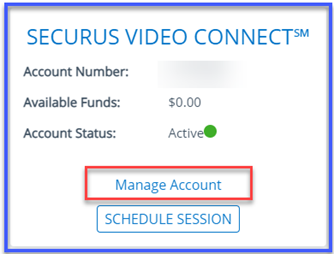
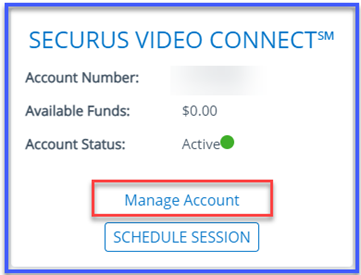
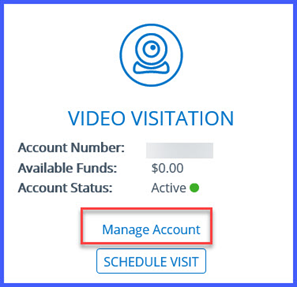
Once you are logged into your online account click on Manage Account
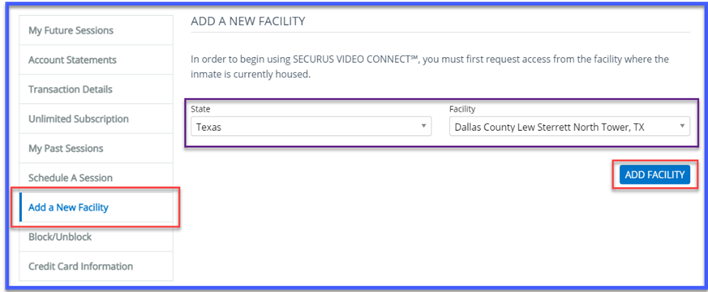
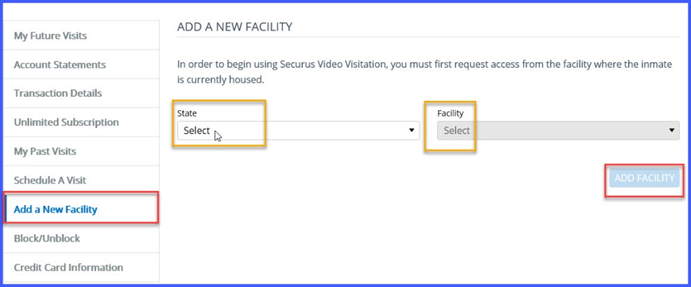
Click Add a New Facility tab. Select the state and facility that you wish to add, click ADD FACILITY.
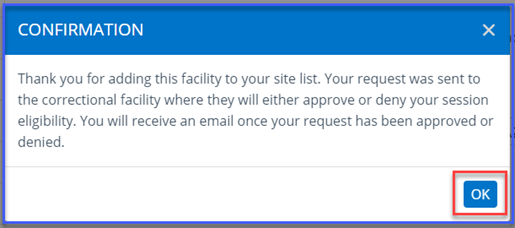
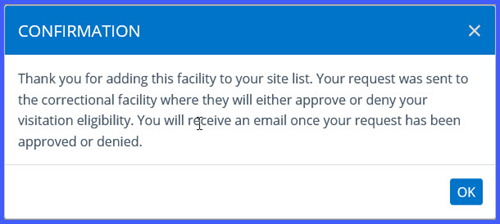
Next, a popup is displayed confirming the action, select OK
The newly added facility will show as “pending” until approved. Once approved it will display Schedule

Transaction History
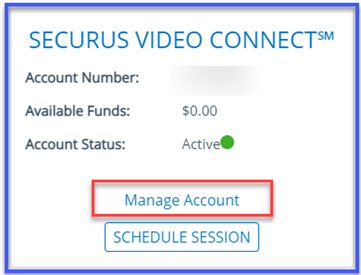
You must login to Securus Online. Go to the Securus Video Connect tile and click on Manage Account
Select the Transaction Details tab. The details field includes Date paid, Incarcerated Individuals Name, Appointment Date/Time, Session Fee, Transaction Fee, Fee Source, Details
Request access for approval to schedule a session
To request access, select Manage account
Select Add New Facility
Select State
Select Facility
Select Add Facility button
User will receive a confirmation message and then the status will show as pending until the facility approves the user

Schedule a Session
Once you are approved by the facility, you will see the option to “Schedule a Visit”.
Depending on the type of visitation the user would like to have, the user can schedule an appointment based off what is available.
Each site will display the type of visitation they offer. This means not all sites offer remote (at home), onsite, or both options.
When scheduling a visit, the user will be required to read the terms and conditions and asked to accept the Terms and Conditions.
To schedule a visit: Select the type of visit and click the Schedule Visit button
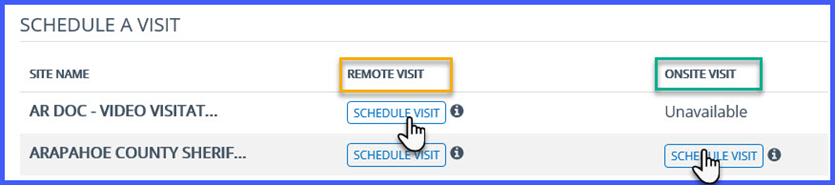
User will then:
Search for the Incarcerated Individual by First and Last name or Incarcerated Individual ID
Select the Duration
Select the Date
Select the Time
If the visit is a remote visit, user will be asked for payment information The user will confirm appointment.