eMessaging is available on www.securustech.net, Android and Apple iPhone and iPads.
You must have a Securus Online account. You’ll sign in to your account, sign up for eMessaging then purchase stamps. After that you can begin sending and receiving eMessages.
You can download the free Securus app from the App store.
New eMessaging account setup:
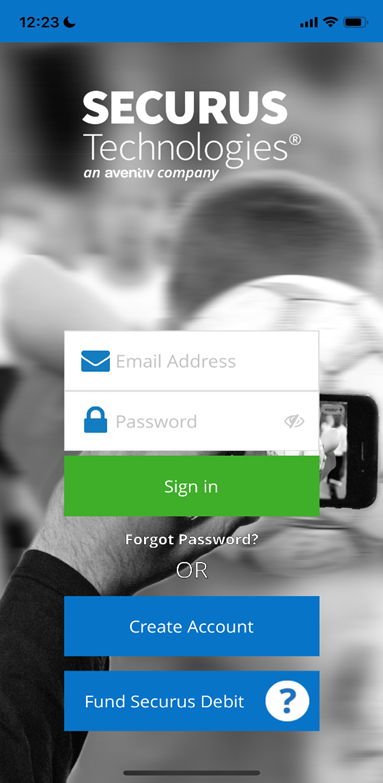
- Open the Securus app and enter your username (Email address) and Password then click Sign in.
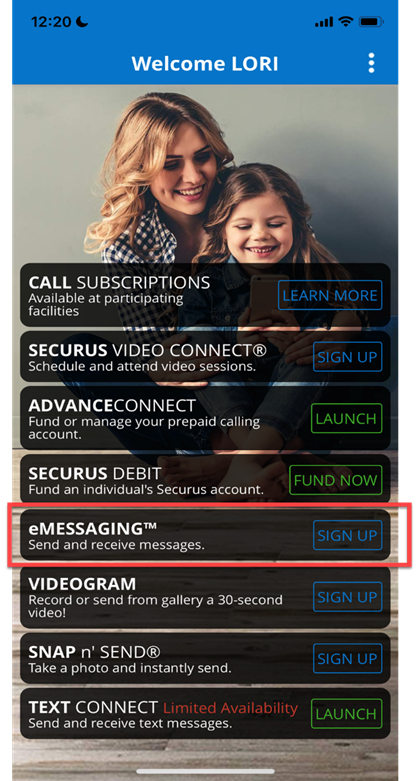
2. Locate the eMessaging tile and click Sign Up.
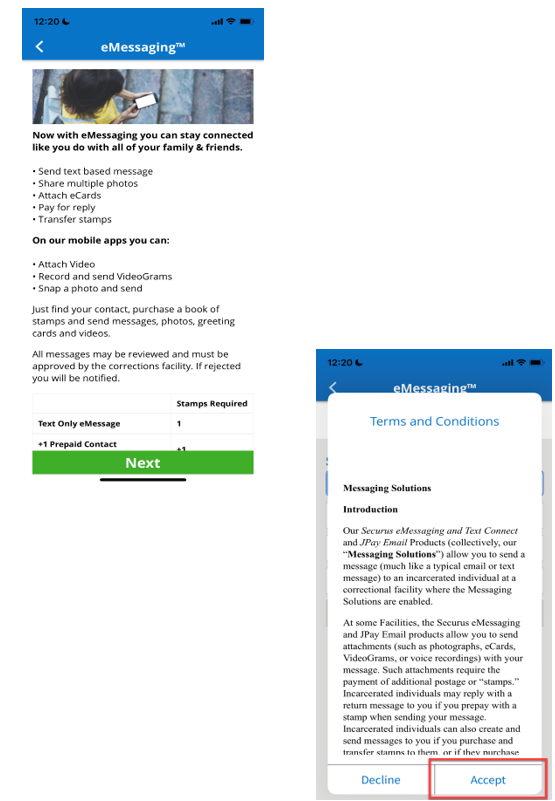
3. An overview is presented of the service. Click Next.
4. Review the eMessaging Terms and Conditions. Click Accept.
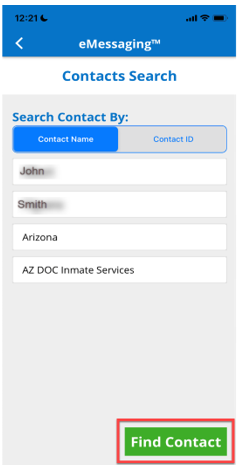
5. Search for the incarcerated individual by name (first and last name) or ID, State and Facility. Click Find Contact.
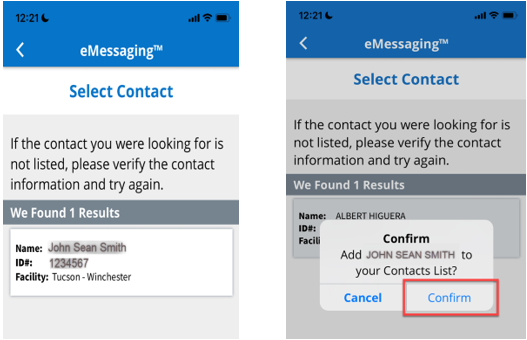
6. The result of the contact search should appear. Select the desired contact and click Confirm.
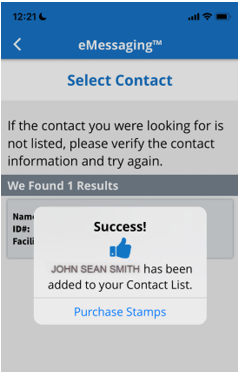
6. Once the contact is added, a confirmation will appear. The option to purchase stamps will also appear. Click Purchase Stamps.
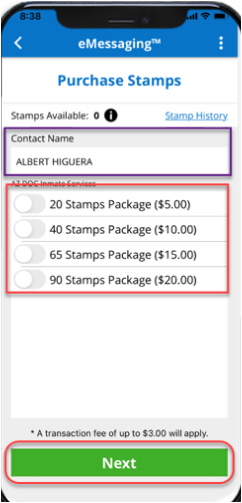
Purchase stamps for eMessaging
- Choose stamp package. (Note this will vary by facility) Click Next.
- Confirm billing address information is correct. If not enter correct information associated with the card being used and click Next.
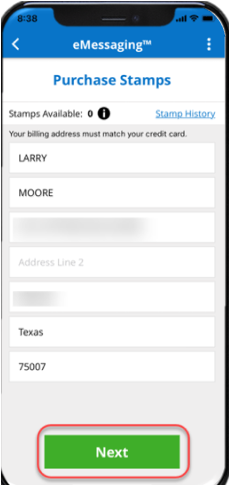
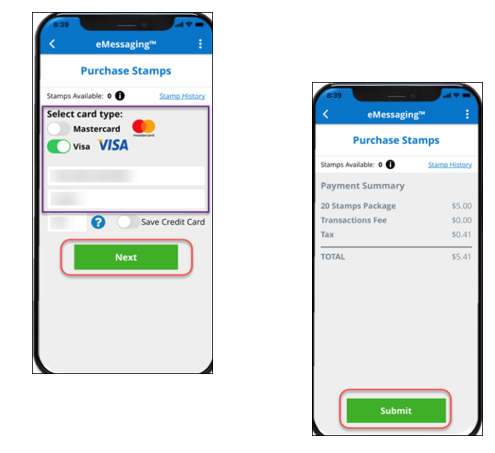
Enter Payment Details and clock Next. A purchase summary will be displayed. Click Submit to process the payment.