

Apple App Store & Google Play New Requirements for the Securus and JPay Mobile Apps
Published:
DELAYED
Due to a recent injunction issued by a district court, the app enforcement has been suspended until this is settled in court.
Users must still be 18 or over to download apps in the Apple or Google Play store.
We’re committed to ensuring your experience remains safe, secure, and compliant with current regulations. To align with recent legislation, the Securus Mobile and JPay apps now require age verification for users accessing the apps. This requirement is driven by app store policies to confirm users are 18 years of age or older – it is not an effort by JPay or Securus to collect your personal information.
What’s changing?
- Starting December 8, 2025 for iOS and January 1, 2026 for Android, you’ll need to confirm you’re 18 or older based on your Apple or Google account information.
- If your age details aren’t already provided, the app will guide you through quick steps to update your account so you can continue using the app.
- Websites remain unaffected – you can still access them without age verification.
To update your age on Apple iOS:
- Open Settings on your device.
- Tap your name at the top to access Apple ID settings.
- Select Personal Information.
- Tap Birthday and add or update your birth date.
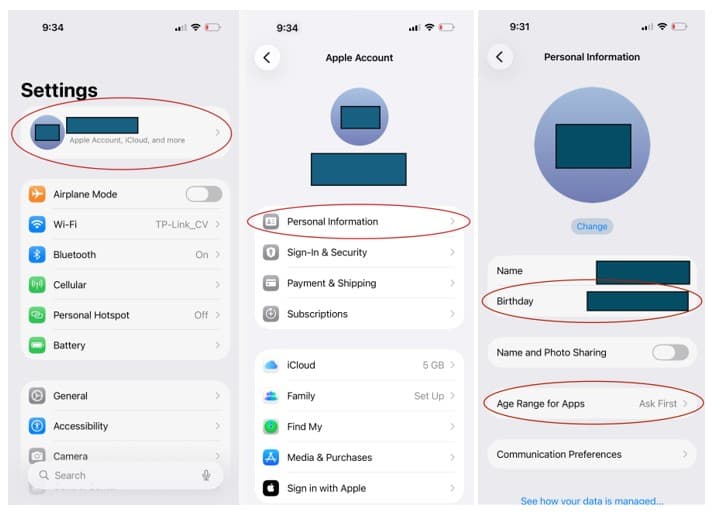
5. Go back and choose Age Range for Apps then find and select Securus Mobile or JPay.
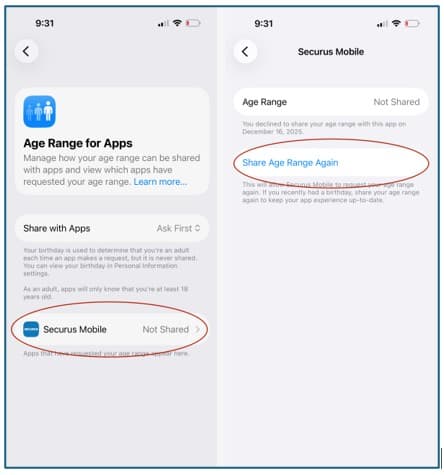
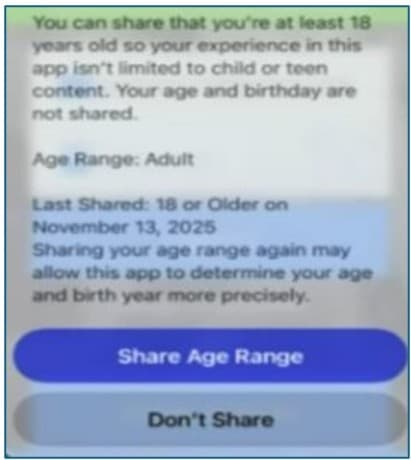
6. Open the Securus or JPay app and tap Share Age Range again to complete the update and begin using the app.
- Open the Google Play store.
- Tap your account icon or name at the top right.
- Select Manage Your Google Account.
- Tap Personal Info.
- Under Basic Info, update or add your Birthday.

6. If you update your birthday, you must verify your age with Google using an ID, credit card or selfie. The example below is using a driver’s license to verify your age.
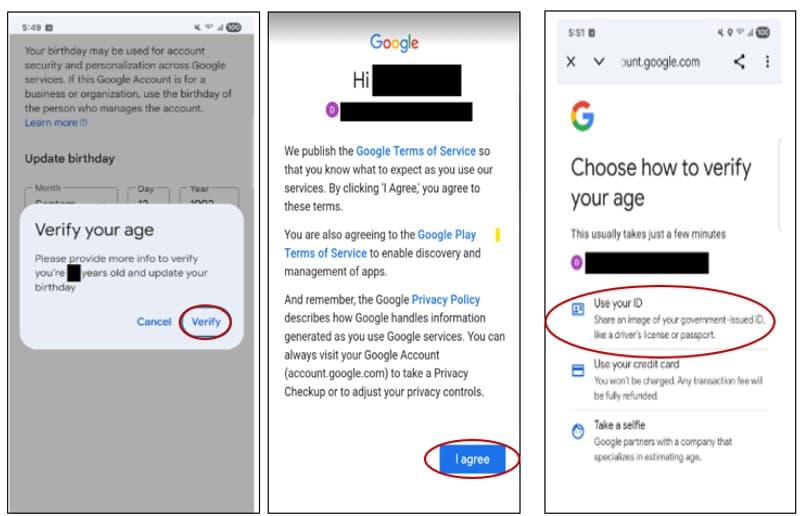
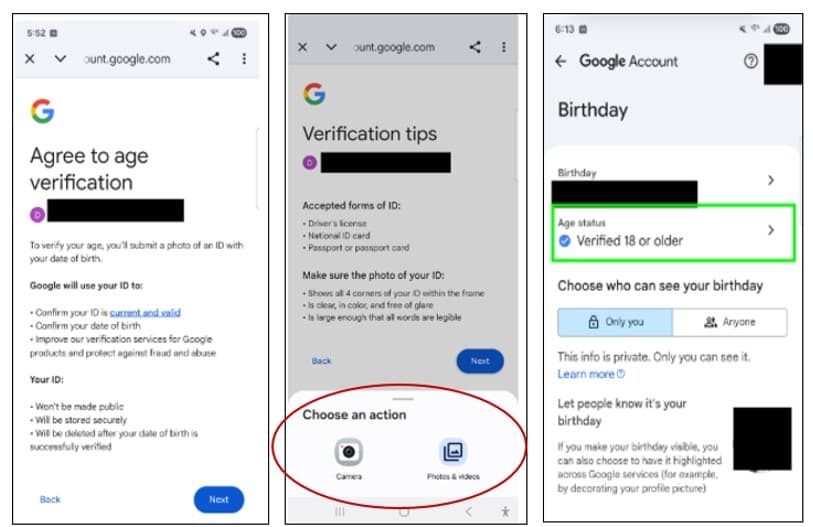
7. Once the age status is ‘Verified 18 or older’, open the Securus or JPay app to begin using the app.